
MAGI-2 Video Generator

Examples
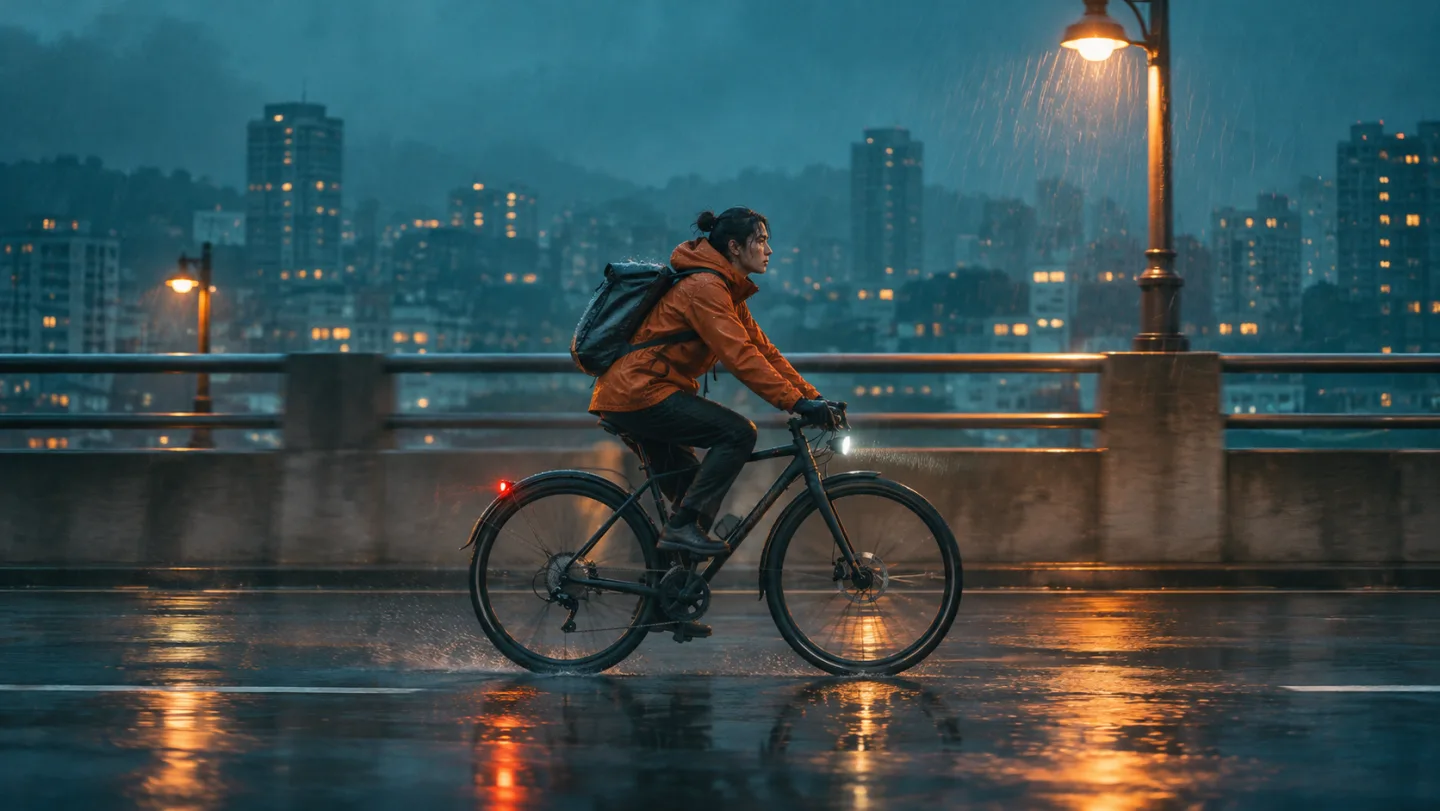
Example prompt
At dusk, track alongside a cyclist crossing a rain-soaked bridge. Push in as the tires cut through a puddle, then stay close as the rider passes under a streetlamp. Hear the rain, the turning tires, and a distant train.
Direct the scene and its sound
Sand.ai’s MAGI-2 creates the picture and soundtrack in the same generation. Describe how the camera moves, what the characters say, and what the scene sounds like.
1080p · 25 fps · 4–30 sec
MAGI-2 examples
Through Five Art Styles
A continuous shot moves through five painting styles over 30 seconds.
Into the Giant Flower World
Reference images guide the same character and wardrobe through three oversized flower landscapes.
Three ways to start a scene
Text to Video
Start with a written prompt. Describe the subject, the action, and the camera move. Add sound cues if the scene calls for them.
Image to Video
Upload a first frame to animate a still. Add a last frame when you want to guide where the shot ends.
Reference to Video
Combine up to 10 images, 5 video clips, and 5 audio clips. Describe what each reference should guide, such as wardrobe, camera movement, or the mood of the soundtrack.
What you can control with MAGI-2
Synchronized audio
Give the scene dialogue, music, or sounds tied to the action, such as a door closing as the camera turns.
Camera moves and cuts
Start wide to establish the setting, follow the subject, then cut to a close-up for the reaction.
Guidance from your own media
Use a still to define the subject, a clip to guide the movement, and an audio reference to guide the sound.
1080p in six aspect ratios
Generate 4–30 seconds per clip. Frame a wide establishing shot in 21:9 or compose a vertical scene in 9:16.
How to create a video with MAGI-2
Write the prompt like a shot brief
Start with what the camera sees. Describe what changes, then add sound cues at the moments they should happen. For a scene with a cut, give each shot its own time range. Put spoken lines in quotes and describe the delivery.
Choose a mode and set the output
Select Text, Frames, or References. Set the aspect ratio and duration, and decide whether to generate audio.
Generate and review
Check the credit cost and select Generate. Play the result in the task panel to review the shots and listen to the audio.
Frequently asked questions
Output settings, audio, and credits for MAGI-2 on Monet
Can I turn off the sound?
Yes. Turn off Generate Audio in the editor to create a silent clip. With audio on, you can request dialogue, music, ambient sound, or effects.
Which output settings are available?
Choose an integer duration from 4 to 30 seconds. Output is 1080p at 25 fps. Supported aspect ratios are 16:9, 9:16, 1:1, 4:3, 3:4, 21:9.
How many Monet credits does a generation cost?
MAGI-2 costs 15 credits per second of requested output. A 5-second clip costs 75 credits. References and the audio toggle do not change the price.
Which version of MAGI-2 does Monet use?
Monet uses Sand.ai’s full MAGI-2 model through EvoLink. MAGI-2 Preview was the earlier research release.